Modes, Measurement & Debug Settings
Most of the Hocus Focus star-detection settings documented elsewhere in this section are the fine-grained advanced knobs. This page covers the controls that sit above them: the Simple-mode presets that derive those knobs for you, the master Advanced toggle, how the optimization wizard's result is wired in, how a frame's HFR is aggregated across its stars, and the debug / intermediate-file options used when tuning detection.
Quick reference
| Setting | Default | Range / Values | Effect |
|---|---|---|---|
| Advanced Mode | Off | On / Off | Stops deriving knobs from presets; exposes every advanced control for manual editing |
| Noise Level (Simple) | Typical | None / Low / Typical / High | Sets hotpixel filtering, blur radius, and measurement-noise reduction |
| Pixel Scale (Simple) | Typical | Wide Field / Typical / Long Focal Length | Shifts wavelet layers, min bounding-box size, and sub-pixel sampling |
| Focus Range (Simple) | Typical | Typical / Wide Range | Adds a structure layer and raises the brightness threshold for far-from-focus donuts |
| Use Optimized Settings | Off | On / Off | Drives detection from the wizard's saved snapshot instead of the presets |
| Measurement Averaging | Median | Median / Mean + Outlier Detection | How per-frame HFR is aggregated across the detected stars |
| Use AutoFocus Crop | On | On / Off | Applies the AF inner/outer crop to non-focusing exposures |
| Debug Mode | Off | On / Off | Saves extra debug data (e.g. structure maps) for tuning |
| Save Intermediate | Off | On / Off | Writes a file for every detection step (not persisted across restarts) |
| Intermediate Path | %temp%\HocusFocusIntermediate |
folder path | Where intermediate files are written |
Simple mode vs. Advanced mode
The settings on the rest of this section's pages only become directly editable once you turn Advanced Mode on.
Advanced Mode
Advanced Mode (property UseAdvanced) is the master switch between Simple mode (preset-driven) and
Advanced mode (manual control of every knob).
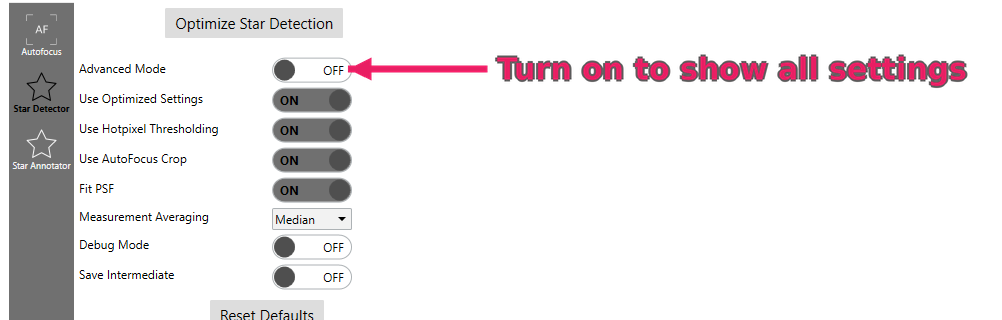
Turn on Advanced Mode to expose every individual detector setting.
Enables advanced mode with fine-grained control over star detection parameters. Not recommended unless you're an expert
- Default: Off
- Range: On / Off
When Advanced Mode is off, changing any of the Simple presets re-derives the full advanced parameter set, so hand edits would be overwritten. When you turn Advanced Mode on, that derivation stops and the current values become a starting point you can tune freely.
When this helps
Leave Advanced Mode off and use the presets unless you have a specific reason to override a single knob. The presets already cover noisy sensors, focal length, and wide focus sweeps. Turn it on only when you are deliberately tuning detection against your own data and understand what each knob does.
Simple-mode presets
In Simple mode, three dropdowns describe your rig and conditions; Hocus Focus translates them into the full advanced parameter bundle. The mapping below is exactly what the plugin applies (it runs whenever any preset changes).
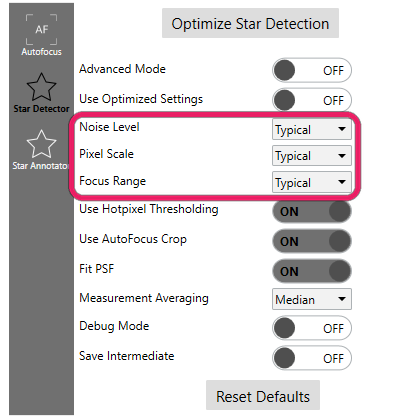
In Simple mode, three presets (Noise Level, Pixel Scale, Focus Range) stand in for the full advanced settings.
Noise Level
Controls how much the source image is smoothed before detection.
Controls the amount of blurring done on the source image before beginning the star detection process. Increase this if you have a particularly noisy sensor or shoot at a very high focal ratio
- Default: Typical
- Values: None / Low / Typical / High
How each value maps:
| Noise Level | Hotpixel filtering | Noise-reduction radius | Measurement noise reduction |
|---|---|---|---|
| None | Off | 0 | Off |
| Low | On | 4 | Off |
| Typical | On | 4 | Off |
| High | On | 6 | On |
Low and Typical currently derive the same values. Noise-reduction radius: the base radius is 3 for Low and Typical, and 5 for High. One is added whenever Hotpixel Thresholding is enabled (the default), so the applied radii are 4 and 6. None stays at 0 because filtering is off.
At None there is no blur and noise reduction is fully disabled. At High, noise reduction is also applied to the measurement image, not just the structure-detection image. Noise Level does not change the brightness threshold; see Brightness Sensitivity for that gate.
When this helps
Bump to High for a noisy sensor or very high f-ratio where faint stars are being missed in noise. Leave at Typical for most CMOS rigs. None is for already-clean data; over-blurring (High on a clean image) can merge close stars and slightly inflate HFR. To tell whether a change is helping, re-detect and watch Total Detected rise without the Structure Candidates count ballooning with spurious candidates in the Star Detection Results panel.
Pixel Scale
Describes your plate scale so detection expects the right star size in pixels.
At high focal lengths, pixel scale decreases and apparent star size (in pixels) increases. Setting this to a higher focal length increases the number of layers considered for star detection, which could increase false positives due from nebulosity
- Default: Typical
- Values: Wide Field / Typical / Long Focal Length
Relative to the Typical baseline (structure layers 4, min bounding-box size 5, sub-pixel sample size 1.0):
| Pixel Scale | Structure layers | Min bounding-box size | Sub-pixel sample size | Sensitivity |
|---|---|---|---|---|
| Wide Field | −1 | −1 | 0.5 | unchanged |
| Typical | baseline | baseline | 1.0 | unchanged |
| Long Focal Length | +1 | +1 | unchanged | less sensitive |
Wide-field rigs have small, possibly undersampled stars, so detection looks at fewer (smaller) structure layers and samples sub-pixel. Long focal lengths spread each star over more pixels, so an extra layer and a larger minimum box are used, and the brightness threshold is raised to reject the faint fragments that flux spreading produces.
Long Focal Length and nebulosity
As the tooltip notes, raising the focal-length setting adds structure layers, which can increase false positives from nebulosity. If you image bright nebulae at long focal length and see junk detections, that is the trade-off to watch.
Focus Range
Tells detection how far from critical focus your sweep travels.
As you get further from critical focus, stars become large donuts. Star detection will typically consider them too large to be stars when you're far enough from focus. Enabling a wide range increases the number of layers considered for star detection
- Default: Typical
- Values: Typical / Wide Range
Wide Range adds one structure layer, so larger, more-defocused stars survive structure detection. It also raises the brightness threshold, which makes the gate stricter: heavy defocus produces small donut fragments with tiny HFRs, and rejecting them keeps them out of the frame's median HFR.
When this helps
Choose Wide Range if your autofocus sweep starts very far out and the extreme frames detect too few stars (defocused donuts being rejected as too large). For a tight sweep around focus, Typical avoids the extra layer and keeps false positives down.
How the presets combine
The derivations stack: Noise Level sets hotpixel filtering and the blur; Pixel Scale and Focus Range then adjust the structure-layer count, minimum box size, sub-pixel sampling, and brightness threshold on top of that. The presets also fix several knobs that are not exposed as preset dropdowns (for example Star Peak Response, Max Distortion, Star Center Tolerance, the PSF fit type (Moffat 4.0) and resolution, and the hotpixel threshold) to their standard Simple-mode values. Those individual settings are documented on the other pages in this section; in Simple mode you do not edit them directly.
Use Optimized Settings
Drives detection from a snapshot produced by the Star Detection Optimization Wizard instead of the preset dropdowns.
When enabled, the optimized star-detection settings produced by the optimization wizard drive detection instead of the Noise Level / Pixel Scale / Focus Range presets. Only available in Simple Mode after the wizard has produced and applied a result
- Default: Off
- Range: On / Off (only meaningful once the wizard has saved a result)
When this is on, Hocus Focus first applies the normal Simple-mode preset baseline, then overlays the wizard's curated tuned knobs (the sensitivity, clipping, distortion, structure-layer, hotpixel and related values the optimizer searches). Knobs the optimizer does not tune keep their Simple-mode preset defaults. Turning it off reverts to the pure preset derivation.
When this helps
Enable this after running the optimization wizard against your own autofocus runs. It lets the tuned result drive live detection while you stay in Simple mode. See the optimization overview for how the snapshot is produced.
Measurement Averaging
Controls how a single representative HFR (and its spread) is computed for a frame from all of its detected stars.
Controls how the average star measurement across the frame is calculated. Median is robust to outliers, and is the default.
- Default: Median
- Values: Median / Mean + Outlier Detection
The two modes differ in both whether stars are pre-filtered and how the frame value is then summarized:
- Median — the frame's reported HFR is the median of the surviving stars' HFRs, and the reported spread is the median absolute deviation (MAD). No additional outlier pass is run; the median is inherently robust to a few bad stars.
- Mean + Outlier Detection — first an outlier rejection pass keeps only stars whose HFR lies within \(\bigl[\,m - 3\,\mathrm{MAD},\; m + k\,\mathrm{MAD}\,\bigr]\) of the median \(m\); the upper factor \(k\) is 4 for relaxed sensitivity and 3 for normal sensitivity. The frame HFR is then the arithmetic mean of the survivors and the spread is their sample standard deviation.
This setting only changes the frame-level aggregate; it does not change which individual stars are detected or each star's own measured HFR.
When this helps
Leave on Median for almost all cases; it needs no tuning and a few bad stars do not move it. Use Mean + Outlier Detection only if you specifically want a mean-based aggregate with an explicit, MAD-based outlier cut (e.g. when comparing against tooling that reports a mean). On sparse fields the mean can be noisier than the median.
Use AutoFocus Crop
Applies the autofocus inner/outer crop region to regular (non-focusing) exposures.
Uses the inner and outer crop from the Auto Focus options for regular exposures (ie, those that aren't done during focusing)
- Default: On
- Range: On / Off
When this is off and the current exposure is not a NINA stock auto-focus run, the region-of-interest crop is disabled and stars are detected across the whole frame. During a NINA stock auto-focus run the crop still applies regardless of this setting; for a HocusFocus AF run the toggle takes effect the same as for normal exposures.
When this helps
Leave on so your imaging-frame star statistics use the same central region as autofocus. Turn it off if you want HFR/star counts reported over the full sensor for normal light frames (for example to gauge corner sharpness), accepting the extra processing of the whole frame.
Debug Mode
Saves additional in-memory debug data during detection.
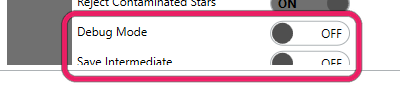
Debug Mode and Save Intermediate write diagnostic images; leave them off for normal use.
Enables debug mode, which saves additional data useful for debugging. Keep this off unless you're tuning star detection and want to view structure maps.
- Default: Off
- Range: On / Off
Save Intermediate
Writes a file for each step of the detection pipeline so you can inspect exactly what the detector saw.
If enabled, every step of star detection emits a debugging file to the intermediate path
- Default: Off
- Range: On / Off
This option is not persisted: it always starts off when the plugin loads, so a forgotten toggle never keeps spamming files across sessions. Use it for a focused debugging run and turn it back off.
Intermediate Path
The folder the intermediate debugging files are written to.
When Save Intermediate Files is enabled, they are written to this path the next time star detection runs
- Default: a
HocusFocusIntermediatefolder under the application temp directory - Range: any writable folder path
If the configured path is empty or does not exist, Hocus Focus falls back to (and creates) the default
HocusFocusIntermediate folder in the application temp directory.
Inspecting a detection run
- Turn Advanced Mode on and (optionally) Debug Mode on.
- Set Intermediate Path to an empty folder you can find easily.
- Turn Save Intermediate on and trigger one detection (or autofocus) run.
- Open the folder and step through the per-stage files to see where stars are gained or lost, then turn the toggle back off.
For interpreting which stars were accepted vs. rejected on a real frame, the live annotation overlay is usually faster than the intermediate files:
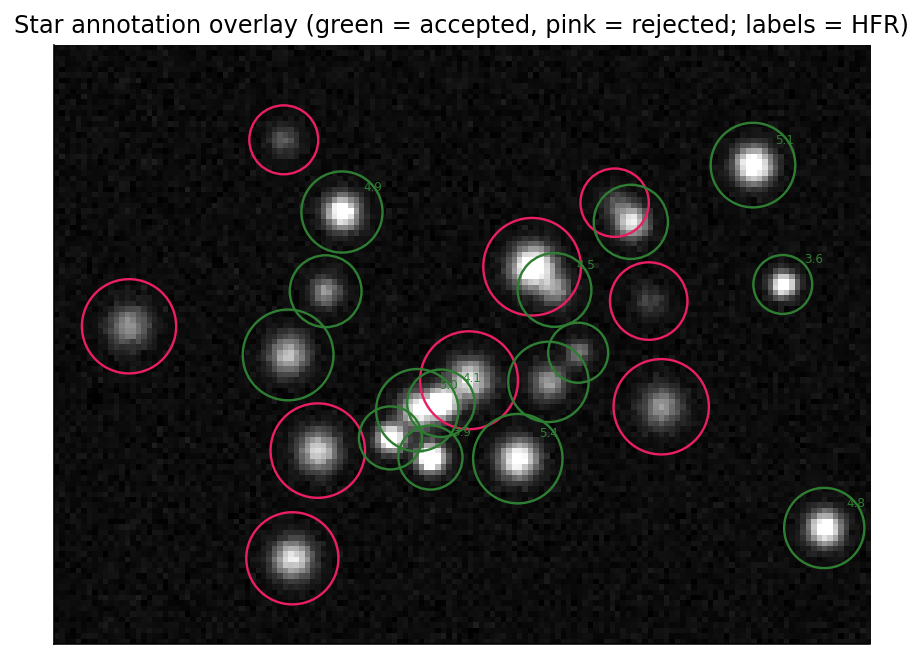
Accepted stars (green) and rejected stars (pink) with per-star HFR labels, showing the same accept/reject logic the debug files record step by step.