Tilt Adapter Wizard
A measured tilt plane tells you which corners need to move and by how much, but turning a screw moves the sensor along that screw's own axis. To convert the Tilt & Aberration Inspector measurement into a concrete instruction ("turn this screw clockwise ¼ turn"), the wizard must know where each screw sits relative to the sensor and how far a turn moves it. That mapping is established once by the Tilt Adapter Wizard. (To practice the measure-and-correct loop before working on real hardware, see the Camera Simulator.)
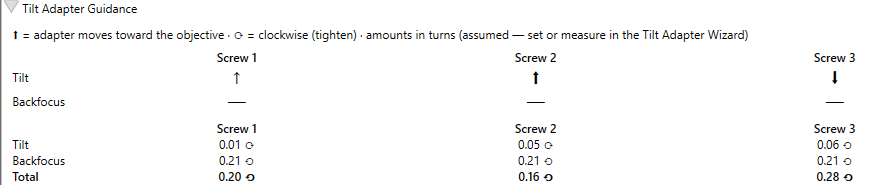
Tilt Adapter Guidance turns the model into concrete per-screw adjustments: direction and number of turns.
The screw-angle convention
Screw orientations are stored as angles measured clockwise from straight up (12 o'clock): 0° is
the top of the sensor, 90° is to the right, 180° is the bottom, 270° is to the left. The wizard
stores one angle per screw (Screw1AngleDegrees … Screw4AngleDegrees). The stored angle is the
direction the best-focus tilt responds in, not where the screw sits: on adapters where a clockwise
turn moves the plate toward the camera, that turn lowers best focus at the screw, so the stored
angle sits 180° from the screw's physical position in the image. The wizard's diagram and the
saved-calibration readout always show the physical position, and Manual Calibration
Entry always takes the physical angle, so you never have to do that
conversion yourself.
Orientation is tracked in image space, not physically
A star diagonal, a mirror, or a rotator can flip the sensor's orientation inside the camera body, so screws numbered clockwise on the physical adapter can appear counter-clockwise in the image. The wizard therefore derives the winding direction from the actual measurements rather than assuming clockwise. Do not reason about screw numbers from the physical adapter; trust the calibrated image-space angles.
3-screw vs 4-screw adapters
The adapter type is set by the Screws field (default 3).
- 3-screw adapter: screws are independent and spaced about
120°apart. The wizard labels Screw 1 at the top (12 o'clock) and numbers the rest clockwise, then solves for the three angles with an equal-spacing constraint, splitting measurement error evenly between them. - 4-screw adapter: screws are spaced about
90°apart and opposite screws are mechanically coupled, so adjustments are made in pairs (tighten one while the opposite loosens). The wizard exploits this: opposite screws are always 180° apart regardless of mirroring, so it measures two screws and places the other two 180° across.
Naming your screws
Every place HocusFocus refers to a screw, it uses whatever you call that screw. Open Screw Labels in the wizard's settings and type a name for each one. The guidance table in the Aberration Inspector, the wizard's own step prompts, the screw diagram, and the automatic-adjustment approval dialog all follow. Names are capped at 12 characters so they fit the narrow table columns; anything longer is trimmed with the full name on the tooltip.
Leave a box blank to use the name shown greyed inside it. That default depends on the adapter:
| Device | Screw 1 | Screw 2 | Screw 3 | Screw 4 |
|---|---|---|---|---|
| ASG Electronic EAT (either preset) | M1 | M2 | M4 | M3 |
| Everything else | Screw 1 | Screw 2 | Screw 3 | Screw 4 |
The EAT defaults are its own motor names, so the wizard's prompts name the motor you actually reach for. Note that screws 3 and 4 are motors 4 and 3: the wizard numbers its screws in rotational order, while the EAT numbers its motors top-right, top-left, bottom-right, bottom-left. Getting that backwards moves the wrong corner, which is exactly what the labels are there to prevent.
Names are stored per adapter, per profile. If you name the screws on a manual adapter and then switch the Device list to an EAT, you get the EAT's names; switch back and your own names return.
The calibration loop
The wizard establishes the screw-to-tilt mapping empirically. The core run is four steps: a baseline measurement, a screw 1 move, a re-baseline, and a screw 2 move. By default the wizard adds a fifth: Measure final re-baseline (on by default, in the Measurement section) restores the screw 2 move and measures it once more. That gives screw 2's move the same bracketed reference screw 1's already has, referenced to the midpoint of the re-baselines on either side of it, which cancels steady drift between steps instead of leaving it in the reading. Turn the setting off to skip the extra autofocus run if your setup is thermally stable and drift is not a concern.
The move steps prompt a known amount of motion, worded as clockwise/counter-clockwise (tighten/loosen) turns for screws (e.g., "Turn screw 1 CLOCKWISE exactly 1 full turn") and as signed +/− steps for stepper adapters; every step ends with a measurement. From the change in the tilt vector \((\Delta A, \Delta B)\) it computes each screw's angle. With a connected motorized adapter, the wizard sends these moves itself instead of prompting for them.
None of those steps measure which way a clockwise turn moves the adapter. That direction comes from the adapter direction setting in the wizard's Measurement section, labeled Screw ⟳ moves adapter (or + steps move adapter for steppers): either Toward the camera (outward, the default) or Toward the objective (inward). Until it is measured, guidance marks the direction "(assumed)". To measure it, turn on Measure direction: this adds two steps (All Screws Clockwise, or All Motors Positive Steps on a stepper adapter, followed by Return to Baseline) and reads the direction off the change in mean best-focus position between them. Turning every screw clockwise is a pure piston, so if the mean best-focus position drops, the plate moved toward the camera — on a standard focuser, that means clockwise moves the adapter toward the camera. The saved calibration then reports the direction as measured. That same all-screws step also feeds the Piston-implied pitch estimate described below. To average out seeing, set Measurements to average above 1; the wizard flags inconsistent repeats so you can re-run.
The measurement itself needs no knowledge of which way your focuser travels — the focuser convention cancels out of it. Only the wording of the direction selector depends on it, so the selector reflects your Increasing focuser position setting (see Aberration Inspector); on a reversed focuser the same stored measurement reads as the opposite mechanical direction.

The Measurement section configures each calibration sweep and sets which way a clockwise turn moves the adapter.
A calibration measurement is a full sensor-model sweep, so it runs the same alignment and focus-centering steps as a standalone Detailed Analysis. Center Focuser First (off by default) re-centers the focuser at best focus before each step's sweep, so the measurement is not skewed toward one side of focus. Signal Amplification gives each step more, finer-spaced focus points for a steadier per-star fit. Both settings help most on faint fields or in poor seeing, and both are editable in the wizard's Measurement section (they are the same settings as the Inspector options), which also shows a live estimate of the images each sweep captures and the total for the whole calibration. Heavily-defocused frames that would otherwise fail to register are not dropped from a step's model: the frame aligner escalates its search instead (see cross-frame registration).
Focuser Step Size drives the micron figures
Focuser Step Size is how far the focuser moves per step, in microns. It normally comes from your focuser driver with no setup at all; you only need to type a value if your driver does not report one, or reports it wrongly. See where it comes from. Without any value at all, adjustments are still reported in focuser steps.
What the screws can fix
The Sensor Model splits the focus surface into two effects. The Tilt Effect is the linear plane (one side focuses ahead of the opposite side); you null it by moving the screws differentially, reported as the per-screw Tilt amount.
The Curvature Effect is the symmetric corners-versus-center bowl. The wizard reads it as a spacing error and derives a backfocus correction from it, reported as the per-screw Backfocus amount: turn all screws the same way to move the whole sensor along the optical axis (or add spacers for changes beyond the adapter's travel), then re-measure and repeat until the Curvature Effect stops dropping. What remains is the residual curvature of a correctly spaced system, set by your corrector design and focal ratio; the adapter cannot remove it (a better-matched corrector or stopping down does).
Manual calibration entry
If you already know where screw 1 sits in the image, you can skip the calibration loop. Open the Manual Calibration Entry expander in the wizard and enter:
- Screw 1 angle (°): the position angle of screw 1 in the image, using the convention above (0° is straight up, at 12 o'clock, increasing clockwise). The remaining screws are placed at equal spacing: 120° apart for 3 screws, 90° for 4.
- Numbering direction: whether screws 2 and up proceed clockwise or counter-clockwise from screw 1, as seen in the image. Mirrors or diagonals in the optical train can flip this relative to the physical adapter, so count the direction on an image if you can.
Apply writes the same calibration state a wizard run produces; the saved-calibration panel tags it "Manually entered calibration (not measured by the wizard)." The curvature sign comes from the adapter direction setting, so guidance stays marked "(assumed)" until a Measure direction run verifies it. The entered angle is interpreted with the adapter direction setting in effect when you click Apply; if you change that setting later, click Apply again. If guidance moves the tilt the wrong way after a manual entry, the numbering direction is flipped: switch it and Apply again. A wrong adapter direction setting inverts guidance the same way; correct that setting and click Apply again.
Apply also blocks Automatic Adjustment, because a typed angle cannot show that your screw numbering matches how the motors are wired. If the calibration you replaced was one Automatic Adjustment could have used, a notification says so; otherwise there was nothing to lose and Apply stays quiet.
Trusting a hand-entered calibration
Automatic Adjustment asks two things of a calibration: that the wizard drove the adapter itself, which is what establishes which physical corner each screw number belongs to, and that the run passed its own confidence check. A hand-entered calibration has neither. With a motorized preset selected and a hand-entered calibration saved, the saved-calibration panel shows a warning headed Automatic Adjustment is disabled. The device does not have to be connected for it to appear.
The warning carries a Trust This Calibration for Automation button. Clicking it trusts nothing yet: it replaces itself with the risk (wrong numbering means unattended automation drives the adapter the wrong way and makes tilt worse) and a Yes, trust it / Cancel pair. Do the check the warning asks for before you confirm. Use Manual adjustment to move one screw a small amount, and confirm the corner that moves is the one you expect for that screw's label.
Yes, trust it links the calibration to the selected preset and marks it reliable, which is what Automatic Adjustment tests for, and the warning disappears. Nothing else changes: the panel still reads "Manually entered calibration (not measured by the wizard)", and every other condition on Automatic Adjustment still applies, including the one-adjustment-per-measurement rule.
Trust lasts only as long as the numbering it vouched for. Applying a manual entry again and Clear Calibration both drop it, and any completed calibration run replaces it with that run's own result. It also belongs to the preset that was selected when you confirmed: switch the Device list to another preset and automation is blocked again, switch back and the trust returns.
The button is not offered for a calibration the wizard measured but flagged as low-confidence. The check above can confirm a screw numbering; it cannot recover angles that measurement noise dominated. Re-run that calibration instead.
Hardware model and device presets
The calibration above tells the inspector which screws to move and the focus deviation to remove. To turn that into a number of turns (or stepper steps) rather than focuser steps, the wizard needs the adapter's physical hardware model:
| Hardware field | Meaning |
|---|---|
| Adjustment type | Whether the adapter is adjusted by Screws (reported in turns) or Stepper Motors (reported in steps). |
| Thread pitch (µm/turn) | Axial microns the sensor moves per full screw turn, per the adapter's mechanical spec; used when Adjustment type is Screws. |
| Step size (µm/step) | Axial microns per stepper step, per the adapter's mechanical spec; used when Adjustment type is Stepper Motors. |
| Screw radius (mm) | Distance of each adjuster from the sensor center, in millimeters; converts a tilt angle into an axial movement at the screw. |
Device presets. Rather than entering those numbers by hand, pick your adapter from the Device list. Choosing a preset pre-fills and locks the hardware fields to the manufacturer's values. The built-in presets are:
| Device | Adjustment | Adjusters | Thread Pitch (µm/turn) | Step size (µm) | Screw Radius (mm) |
|---|---|---|---|---|---|
| Neumann CTU XT48 | Screws | 3 | 400 | — | 44 |
| ASG Photon Cage - 78mm | Screws | 4 | 212 | — | 44 |
| ASG Photon Cage - 90mm | Screws | 4 | 212 | — | 50 |
| ASG Electronic EAT - 90mm | Stepper Motors | 4 | — | 1.8 | 55 |
| ASG Photon Cage - ZWO 461 | Screws | 4 | 212 | — | 54 |
| ASG Electronic EAT - ZWO 461 | Stepper Motors | 4 | — | 1.8 | 62.75 |
| OGMA Z'Tilter - 3-point configuration | Screws | 3 | 450 | — | 48.9 |
| OGMA Z'Tilter - 4-point configuration | Screws | 4 | 450 | — | 48.9 |
| OGMA O'Tilter | Screws | 3 | 450 | — | 43.25 |
| OGMA +Tilter / OAG Pro - 3-point configuration | Screws | 3 | 450 | — | 40 |
| OGMA +Tilter / OAG Pro - 4-point configuration | Screws | 4 | 450 | — | 40 |
The ASG Photon Cage adjusters are 120 TPI, which is 211.7 µm per full turn (the manufacturer rounds this to ~212). For the motorized EAT units the Screw Radius column is the radius of the motors from the sensor center. The two ASG Electronic EAT presets are motorized: the wizard can connect to the adapter over a serial port, run the calibration hands-off, and let the inspector apply corrections automatically. See Motorized Tilt Adapter.
Not in the list? Pick the "Manual" entry. It leaves every hardware field editable, so you can enter your adapter's adjustment type, screw count, thread pitch (or stepper step size), and screw radius yourself.
Measured pitch is an effective value, and it can legitimately differ from the mechanical spec
A calibration run also measures a thread pitch or stepper step size, from how far best focus actually moved for a known screw or motor move. That measurement runs through the optics and the focuser, not a ruler on the adapter: it is an effective µm/step in focus-shift terms, not necessarily the mechanical spec entered in the Hardware table above. On a rig where focuser travel and sensor travel are not exactly 1:1 (moving optics that re-image as the focuser travels, or a reducer or flattener riding the drawtube), the measured value can sit well above or below the mechanical spec. That is expected, not an error: moving-optics re-imaging, an overstated configured Focuser Step Size, and an understated adapter spec all produce the same symptom, and a single calibration run cannot tell them apart.
Corrections are computed in the same effective frame the wizard measured, so clicking Use measured value keeps them self-consistent. Leaving the mechanical spec in place on a rig where the two disagree over-corrects or under-corrects every tilt and backfocus adjustment by that same ratio. The wizard remembers the last measured value and shows it next to the saved one, in the Measured Adapter Hardware panel, so you can compare before deciding.
Two more readouts can appear in that panel, each hidden when the run did not produce it:
- Piston-implied is a second, independent estimate of the same effective pitch, from how far best focus moved when all screws were driven the same amount (a pure piston, no tilt). It only appears when Measure direction (above) was on for that run, since that setting is what adds the all-screws step. Measure direction is off by default, so a default run shows neither this line nor its warning. When it does appear, the wizard warns if it disagrees with the tilt-derived measurement by more than 20%.
- Corner-AF cross-check is the same measurement re-derived from the four corner regions' own autofocus results instead of the per-star sensor model: a second estimator of the screw moves. The wizard warns when it disagrees with the main reading by more than 15%.
Without a valid hardware model, adjustments are still reported in focuser steps (and, if Focuser Step Size is set, in microns); you just do not get the turn/step figure.
At the foot of the Measured Adapter Hardware panel, Inputs to this calculation lists the four
numbers the measurement used: Pixel size, Focuser step size, Screw radius, and Applied
per screw. The pixel size is the pitch of the frames as they were captured, so with NINA's Auto
Focus Binning above 1x1 it is the binned pitch and says so,
for example 7.52 µm (3.76 µm at 2x2 binning). That is deliberately not the Pixel size (µm) box
higher up the pane, which edits your camera profile's native pixel size.
A calibration measured before Hocus Focus 4.0.0.17 with Auto Focus Binning above 1x1 recovered a thread pitch (or step size) too large by the binning factor. If you clicked Use measured value on such a run, that inflated figure is your saved hardware now, and every correction computed from it comes out that much too small. Nothing repairs it on its own. Replay that run (replay re-fits the tilt plane from the saved frames, so the pitch comes out right whatever the file recorded) or re-calibrate, then click Use measured value again.
Saving and replaying a calibration run
Calibration involves several focus sweeps, which are expensive to repeat. Turn on Save Calibration
for Replay and the wizard writes each step's autofocus run (plus a metadata.json) into the folder
you choose, so a calibration can be re-analyzed later without going back to the telescope.
The Replay button next to Calibrate re-runs the analysis on a saved folder. Because the run was saved with the star-detection settings used at capture time, it first asks how to apply settings:
- Use current settings: replay with your current profile's star-detection and tilt-calibration settings.
- Use the captured settings (don't change my profile): replay with the star-detection settings from when the calibration was captured, held in memory only; your profile is left untouched.
- Update my profile to the captured settings: overwrite your profile's star-detection settings with the captured ones, then replay.
Tuning detection against a saved calibration
Replay is the daytime tuning loop for the inspector: save a calibration once at the scope, then iterate on detection settings indoors (for example, after running the Optimization Wizard) and replay with Use current settings to compare. It is the same idea as replaying an autofocus run.