Quick Start
This guide takes you from a fresh install of Hocus Focus to a working, tuned autofocus setup. The order matters: get a basic autofocus running first, turn on saving, capture a run to disk, then let the Optimization Wizard tune star detection against that saved run. Each step links to a deeper reference page if you want the full detail.
Before you start
Install the plugin first. In NINA, open Plugins → Available, find Hocus Focus, and install it (you need NINA 3.2.0.2001 or newer). Then restart NINA.
1. Tell NINA about your rig
Two rig numbers matter to several Hocus Focus features, so get them right first: your pixel scale and how far your focuser moves per step.
- Pixel size (microns) — NINA's Options → Equipment → Camera tab. Usually filled in by the camera driver; confirm it matches your sensor.
- Focal length (mm) — NINA's Options → Equipment → Telescope tab. Together with pixel size this gives your pixel scale (arcsec/px). The detector uses it directly, and knowing it tells you which Simple-mode Pixel Scale preset to pick.
- Focuser Step Size — how far the focuser moves per step, in microns, which is what lets the inspector report tilt and backfocus adjustments in microns rather than bare focuser steps. Usually nothing to do here: it comes from your focuser driver. Check the Aberration Inspector options (the inspector panel, not the main Options page) — if the greyed-out hint in the box shows a sensible number, you are set. If it is empty, or your driver reports it wrongly, type the real value to override it.
2. Switch NINA over to Hocus Focus
Turn on the parts you want. Go to Options → Imaging → Image Options and, in the dropdowns, select Hocus Focus for:
- Star Detector — the improved detector (see Star Detection).
- Star Annotator — the customizable overlay (see Star Annotation).
- Auto Focus — the concurrent autofocus engine (see Autofocus).
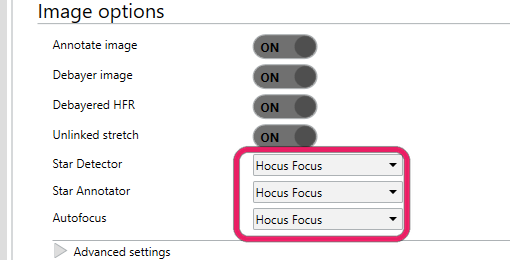
Set Star Detector, Star Annotator, and Autofocus to Hocus Focus in Options, Imaging, Image Options.
Some features need both
The autofocus engine and the Aberration Inspector require Hocus Focus to be selected for both Auto Focus and Star Detector. You can otherwise mix and match, for example keeping only the detector.
3. Get a first autofocus working
Aim for a run that completes and finds a believable best-focus position. It does not have to be a great fit yet, and there is no need to hand-tune detection settings chasing one: tuning is the Optimization Wizard's job (step 6), and it works from data you capture in the next two steps.
Two groups of settings matter:
- The Simple-mode presets, on the plugin's Star Detector tab (NINA's options → Plugins → Hocus Focus). Leave Advanced Mode off. Set Pixel Scale (Wide Field, Typical, or Long Focal Length) to match your rig, raise Noise Level if your sensor is noisy, and leave Focus Range at Typical.
- NINA's own focuser settings (Options → Equipment → Focuser): the autofocus exposure time, step size, and initial offset steps. Size the sweep so it brackets focus decisively: at the outermost points stars should be visibly bloated, with HFR roughly three times its in-focus value, and about four points on each side of the minimum.
Get roughly focused first (a Bahtinov mask or a careful manual pass is fine), then run an autofocus from the Auto Focus panel in NINA's Imaging tab. A working run sweeps the focuser, traces a V-shaped HFR curve, fits a model through it, and moves to the fitted minimum:
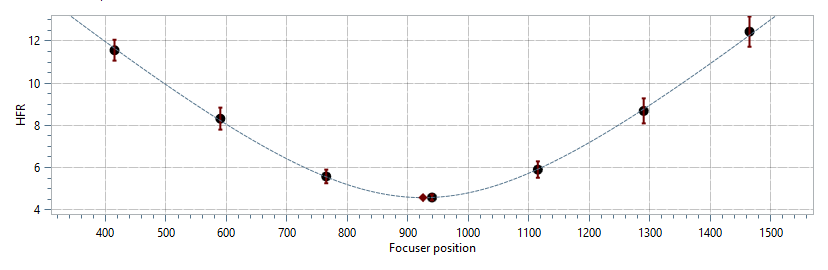
What success looks like: a V with a fitted minimum. Some scatter and a merely decent fit are fine at this stage.
If the curve looks flat, the step size is too small. If stars vanish at the ends of the sweep, the step size is too large; reduce it, or set Focus Range to Wide Range so heavily defocused donut stars are still detected. If few stars are found even near focus, increase the exposure time. Narrowband filters in particular can need much longer autofocus exposures at first; step 7 shows how to bootstrap them and work the exposure back down.
→ Full detail: Autofocus.
4. Turn on Save and choose a folder
On the plugin's Auto Focus tab, turn on Save and set Save Path to a folder you have created for this purpose. The folder must already exist: if it does not, autofocus still runs, but NINA shows a warning and nothing is saved.
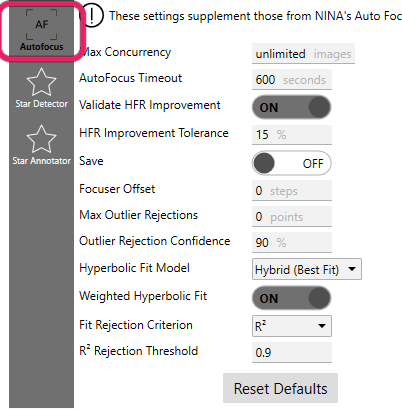
The Auto Focus tab; the Save Path field appears once Save is turned on.
Every autofocus run now writes a complete record of itself to a new AutoFocus_<date>_<time> folder
under that path: the focus images themselves, the star-detection results, and the stretched annotated
frames. A saved run is replayable: Hocus Focus can re-run detection and curve fitting on it later, with
different settings, without touching the telescope.
5. Run autofocus again
Run another autofocus, exactly as in step 3. The run itself is no different; the point is to capture a real run from your rig to disk. One good run is enough to continue; a couple more from the same optical setup (same camera, scope, and filter) give you a spare to pick from, and more data to share if you ever need help.
6. Tune star detection with the Optimization Wizard
Now hand the saved run to the Optimization Wizard. It replays your run while searching for the detection settings that produce the cleanest, most repeatable focus curve, and it never returns a result worse than your current settings.
- Launch the wizard from the top of the Star Detector tab.
- Choose your saved run as the source and keep the default objective, autofocus repeatability (leave Optimize for aberration inspection off).
- When the search finishes, review the improvement (reported relative to your current settings), press Continue optimizing for another pass if you like, and accept the result. Adopt the recommended autofocus step size it offers alongside the settings.
The search re-runs star detection on every frame of your run for each candidate it evaluates, so it is computationally expensive and can take a while on a slow imaging computer.
Run the wizard on another machine
The wizard works entirely from the saved folder, so it does not have to run on your imaging
computer. Copy the AutoFocus_* folder to a faster machine with NINA and Hocus Focus installed, run
the wizard there, and press Export at the bottom of the Star Detector tab. Back on the imaging
computer, Import the exported .json file, review exactly what will change, and apply. See
exporting and importing settings.
→ Full detail: Star Detection Optimization.
7. Narrowband filters: tune with a live sweep
Skip this step unless you autofocus through narrowband filters. Through Hα, OIII, or SII, so few stars appear that autofocus often will not converge at all, which leaves you with no saved run for the wizard to replay. The wizard's Live Auto-Focus source breaks that deadlock: instead of replaying a run, it captures one, without needing a working autofocus first.
Reach focus manually before starting (a Bahtinov mask or a careful manual pass is fine); the sweep is centered on the current focuser position, so it has to begin near focus. Then, in the wizard:
- Choose Live Auto-Focus as the Source, and set the Exposure. Start with an exposure time you know shows stars through this filter, even if it is far longer than you would ever autofocus with. The sweep needs stars visible out at its defocused ends, and a too-short exposure just produces empty frames that nothing can be tuned against.
- Choose the folder to Save captured frames to and press Start. The wizard sweeps the focuser across a fixed range (built from your profile's auto-focus step size and offset steps), saves an image at every point whether or not any stars are detected, returns the focuser to where it started, and then searches for the detection settings that build the cleanest focus curve from those frames.
- Once a run succeeds, run it again with a shorter exposure, and keep shortening until the result degrades. This finds how far you can push this filter: a well-tuned detector handles much fainter stars than the defaults, and narrowband autofocus exposures often end up several times shorter than the safe starting value.
- Finish with the exposure you will actually autofocus with. On the summary, turn on Apply these auto-focus settings to my profile when I click Accept: along with the recommended step size, it writes the sweep's exposure into your profile as the auto-focus exposure time, so you focus with the exposure you optimized against.
→ Full detail: the live-run walkthrough in Star Detection Optimization.
8. If you run into trouble
Saved runs replay deterministically, so sharing one lets the plugin author reproduce exactly what your rig did, frame by frame. If autofocus misbehaves or a result looks wrong:
- Upload the saved run folders (the
AutoFocus_<date>_<time>folders under your Save Path) to a cloud storage provider such as Dropbox or Google Drive. - Post a download link in the #hocus-focus channel on the NINA Discord server, with a short note about what you expected and what happened instead.
A replayable run is far more useful than a screenshot of the curve: it carries the actual frames and detection results, not just a picture of them.
Where to go next
With autofocus working and tuned, the same detector and saved-run machinery feed the rest of the plugin:
- Check your sensor for tilt and backfocus. Open the Aberration Inspector dockable panel and run a Detailed Analysis: an autofocus across the center and corners of the sensor at once, reporting tilt, backfocus error, and field curvature. Consider first re-running the Optimization Wizard with Optimize for aberration inspection turned on: it tunes detection to recover many more stars across the whole frame, which is what the tilt model needs. → Tilt & Aberration Inspector
- If you have a tilt adapter, calibrate it. The Tilt Adapter Wizard learns where each screw sits relative to your sensor and how far a turn moves it, turning tilt measurements into concrete screw-turn guidance. → Tilt Adapter Wizard
- Practice in the daytime. The Camera Simulator renders realistic star fields from an ASTAP star database, complete with defocus, donuts, and injectable sensor tilt, so you can test autofocus settings or rehearse a full tilt calibration with no sky at all. → Camera Simulator
- Customize the annotation overlay: colors, fonts, and what gets drawn over accepted and rejected stars. → Star Annotation
- Go deeper on the settings. Every detection knob, and everything the optimizer searches over, is documented in Star Detection Settings and Star Detection Optimization.